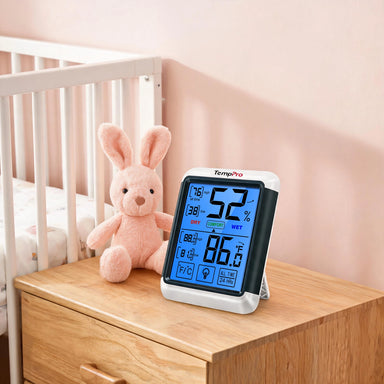
Why Your Hygrometer Reads High near a Humidifier


If your hygrometer reads high next to a humidifier, it may be measuring a pocket of moist air near the mist outlet rather than the whole room. Move it to a dry spot away from direct mist, let the sensor adjust, and compare the reading again.
The heat is running, the bedroom feels dry, and your humidifier is finally out of the closet. You set a humidity monitor beside it. A little later, the reading climbs. But the rest of the room still feels the same.
Before turning the humidifier up or deciding your monitor is broken, check its location. A hygrometer measures the air around its sensor. Right beside the mist outlet, that air may be more humid than the air near your bed or desk.
Before changing the setting, work through the four checks below. They will help you tell a placement issue from a reading that deserves a closer look.
Table of Contents
Why the readings change with location
Moisture does not spread evenly through a room the instant a humidifier releases it. Furniture, airflow and an open or closed door can affect conditions around the device. A monitor sitting beside the outlet may be reporting a local pocket of humid air rather than a useful room reading.
Temperature matters, too. The screen shows relative humidity, or RH: how much water vapor is present compared with saturation at the current temperature. With the same amount of water vapor, cooler air has a higher RH than warmer air. A cold windowsill and a shelf near a heating vent can give different readings.
That does not automatically mean either sensor is faulty. It means placement is part of the measurement. For more background, read our guide to what a hygrometer measures.
Four checks before you change the setting
Move the monitor into open room air
Choose a dry, stable shelf or table in the part of the room you want to monitor. Keep it outside the mist path with air circulating around the sensor. Avoid direct sunlight, heating vents, radiators and spots beside a frequently used bathroom door.
There is no universal distance for every room. Follow both devices’ placement instructions. If mist reaches the monitor or its supporting surface becomes damp, move it farther away.
Let the sensor adjust to its new location
After moving the monitor, give its sensor time to adjust. Follow the timing in its instructions, if provided, and look for readings that settle rather than judging the first number on the screen. A quick display update does not mean the sensor has fully adjusted.
Keep the humidifier setting and thermostat unchanged during this check. Opening a window or changing several settings at once makes the result harder to interpret. If the room itself is changing, repeat the comparison under steadier conditions.
Compare devices in the same place
Place two hygrometers side by side in the same dry spot and let both settle. Check their temperature readings as well as humidity. Small differences can be normal within their accuracy specifications. This comparison tells you whether they disagree; it does not prove which one is correct.
If a large difference remains, check batteries, sensor openings and the manufacturer’s troubleshooting steps. Use only a calibration procedure supported by your model.
Check again during your normal routine
Keep the monitor in your chosen spot. Check before the humidifier runs, later in the evening and the next morning. Note whether the bedroom door was closed and the heat was running. Compare similar conditions across several days. A few notes about the room make the numbers more useful than a collection of unrelated readings.
Quick troubleshooting guide
| What you notice | Possible reason | What to do |
|---|---|---|
| High only near the outlet | Local moisture from the mist | Move outside the mist stream. |
| Changing after relocation | Sensor still adjusting | Wait for stable readings. |
| Two devices disagree | Different conditions or accuracy tolerances | Compare side by side in a dry spot. |
| High away from the outlet | Possible room moisture problem | Reduce humidification; check moisture sources. |
| Large mismatch persists | Possible battery or sensor issue | Follow model-specific checks or contact support. |
What a placement check might look like
Here is a hypothetical example, not measured test data: the same hygrometer might read 70% RH beside the mist and 45% RH after settling across the room. Different local conditions could explain the change. These are illustrative numbers, not product test results. Moving the monitor does not lower the room’s humidity.
If it also stays near 70% RH across the room, investigate excess moisture. Reduce or stop the humidifier and check for condensation, shower steam, cooking moisture, drying laundry or leaks. Investigate persistent dampness rather than assuming the monitor is faulty.
Use the reading and check the room
The EPA recommends 30-50% indoor relative humidity as a general range. Its home humidifier guidance advises against humidifying above 50%. If windows or nearby surfaces collect moisture, reduce the humidifier output and address the moisture source.
A reading away from the mist helps you decide whether to change the setting, but it is not a whole-room average. Check another location if conditions near the bed seem different from those at your desk.
A comfort icon does not guarantee that cold windows or walls will stay dry. Look for condensation as well as checking the screen, and follow the humidifier’s cleaning instructions.
See what happens between humidity checks
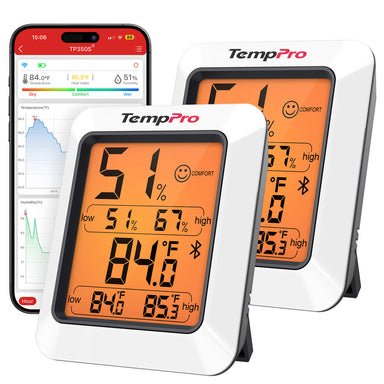
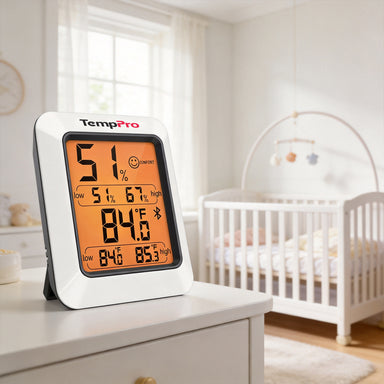
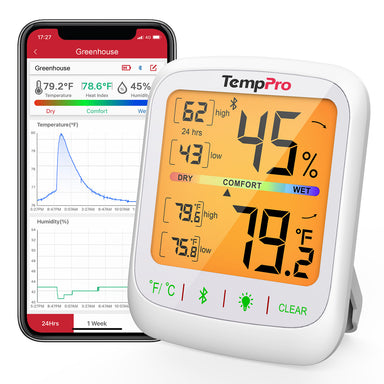
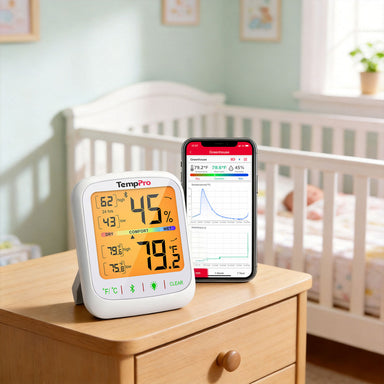
A single bedtime reading cannot show what happens through the night. The TempPro TempAir ELITE TP358 indoor humidity monitor helps you follow that pattern from one consistent location. Its backlit LCD is handy in a dim bedroom, and the Bluetooth app lets you review temperature and humidity trends.
For example, review the history after an evening on a lower humidifier setting, then compare it with another evening under similar conditions. The TempPro TempAir ELITE TP358 supports storage and export of up to two years of data. For this check, start with a few comparable evenings so you can spot a pattern without relying on memory.
Custom humidity alerts can let you know when a limit you choose is crossed. Set a limit that suits your monitoring plan, then check the room if an alert arrives. Keep the Bluetooth connection and app notification settings enabled for alerts to work as intended.

Keep your phone within effective Bluetooth range when using the app. Walls and interference can shorten that range, so check the connection from the place where you normally use your phone. Once connected, you can review the room’s trend without moving the monitor from its usual spot.
Want to see how your room’s humidity changes between checks? Explore the TempPro TempAir ELITE TP358 Bluetooth Hygrometer for a backlit display, app history and custom alerts that support your humidifier routine.
FAQs about Hygrometer Readings near Humidifiers
Can I put a digital hygrometer next to my humidifier?
Keep the digital hygrometer outside direct mist and away from wet surfaces. A separate shelf is usually more useful than the humidifier’s own table; follow the clearance guidance for both devices.
Why does it disagree with the humidifier display?
The built-in sensor may sit near the humidifier’s air intake, while your separate monitor samples another part of the room. Placement, temperature and sensor tolerances can all contribute. Check locations before assuming a fault.
Does a high reading mean I need a dehumidifier?
Not on the basis of one reading. First reduce added moisture and investigate its source. If humidity remains high in representative locations, assess ventilation and whether dehumidification is appropriate for your home.
Can one monitor represent the entire house?
No. Closed bedrooms, living rooms and basements can have different conditions. For multiple spaces, consider whether separate indoor thermometers and hygrometers would make regular checks more practical.
How long should I wait after moving my hygrometer?
Use your model’s instructions and wait for stable readings. Adjustment time depends on the sensor and the change in conditions. The TempPro TempAir ELITE TP358 refreshes every 10 seconds, but that does not mean it fully adjusts to a new location in 10 seconds.
Can humidifier mist damage a hygrometer?
Direct mist can wet the sensor or housing and may cause unreliable readings or damage. A humidity measurement range is not a waterproof rating. If the device gets wet, follow its manufacturer’s instructions.
How accurate should a digital hygrometer be?
Check the accuracy rating for the humidity range you expect to measure. The TempPro TempAir ELITE TP358 specifies ±2 percentage points from 20% to 80% RH, and ±3 outside that band within its 10–99% RH range. A small disagreement alone is not a reason to recalibrate a device.
Final Thoughts
A high hygrometer reading near your humidifier doesn't always mean your room is too humid or your device is inaccurate. Often, it comes down to where the monitor is placed.
For more reliable readings, keep your hygrometer away from direct mist, allow the sensor to adjust, and monitor humidity from a consistent location. Small adjustments like these can make it easier to maintain a comfortable indoor environment.
If you want to understand how humidity changes throughout the day or overnight, a Bluetooth hygrometer like the TempPro TempAir ELITE TP358 can help you track trends and make more informed decisions about your humidifier settings.


Comentarios
Productos recomendados